



What Is Microsoft Edge Copilot?
Microsoft Edge Copilot is an AI assistant built into the Edge browser. It provides context-aware help as you browse, letting you ask questions and get real-time, relevant answers without leaving the page. While you’re reading an article, watching a video, or navigating a website, Copilot can assist with summaries, suggestions, or deeper insights related to the content you’re viewing.
Copilot Mode was first introduced in Microsoft Edge in February 2023 and was originally called “Bing Chat”. The feature has evolved, and in July 2025 (around Edge version 137), a full Copilot Mode that changes the New Tab page to be AI-first.
This is part of a series of articles about AI browser
In this article:
Core Capabilities of Edge Copilot
Edge Copilot includes a range of built-in tools to assist with browsing, content creation, and productivity. Key capabilities include:
- Summarization: Copilot can summarize the content of web pages, PDFs, and videos you’re viewing. By clicking the Discover Card labeled “Create a summary,” users can quickly generate a condensed overview of the content.
- Image generation: Users can generate images directly within the Edge sidebar by entering a text prompt. Copilot returns different visual styles based on the description.
- Personalized daily briefings: Copilot Daily provides a custom summary of the day’s news, weather, and important updates.
- Chat assistance: Copilot offers an AI chat feature that helps users navigate the web, answer questions, and find information quickly. It’s accessible via the Copilot icon in Edge.
- Copilot vision: This feature allows Copilot to analyze what’s on your screen in real-time and offer context-aware suggestions or answers. It activates when you click the microphone icon and start speaking.
- Voice interaction: Copilot Voice enables users to interact with the assistant using spoken commands. This feature supports hands-free browsing and AI assistance.
- File uploads: Users can upload documents, PDFs, images, and other files for Copilot to analyze. This is useful for extracting information, summarizing content, or answering file-related questions.
- Chat mode options: Copilot includes different chat modes that let users customize the assistant’s behavior and tone. These modes are available via a drop-down menu in the Copilot interface.
Getting Started with Edge Copilot
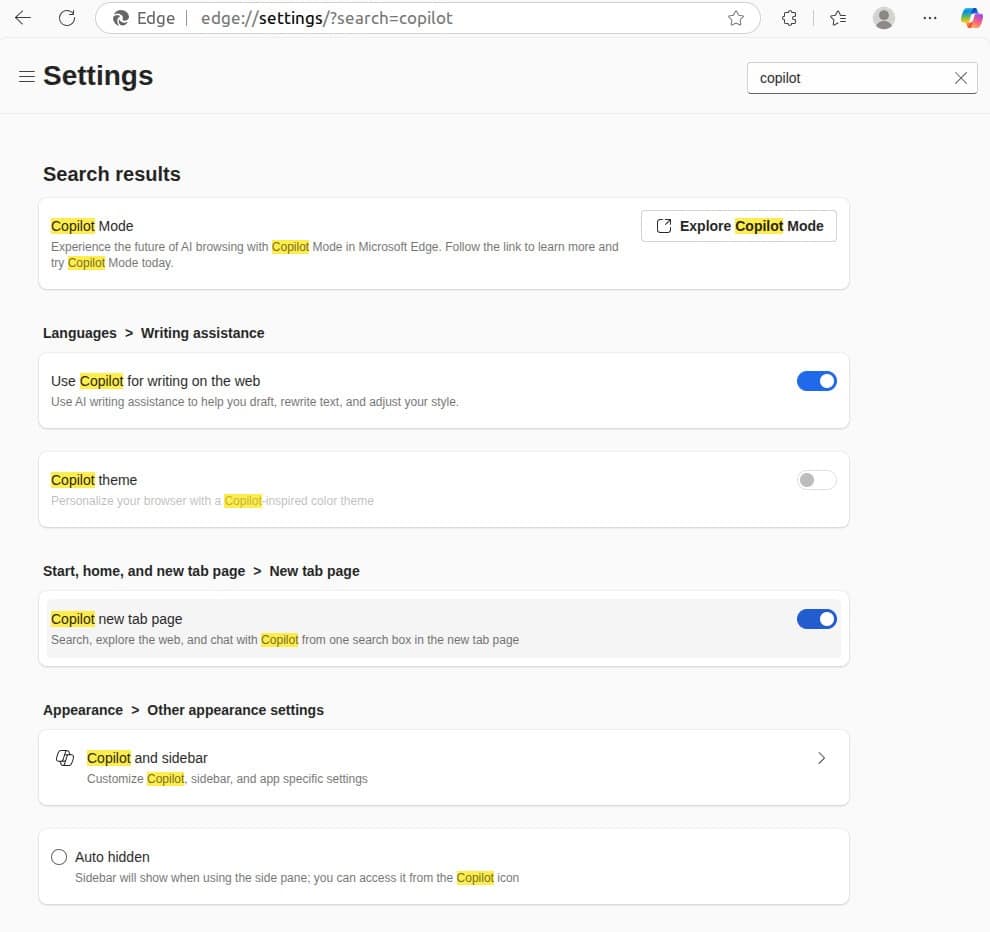
To start using Edge Copilot, you need to enable Copilot Mode in the Microsoft Edge browser. An easy way to enable it is to search for “copilot” in Edge settings:
This is how your browser should look when Copilot is enabled:
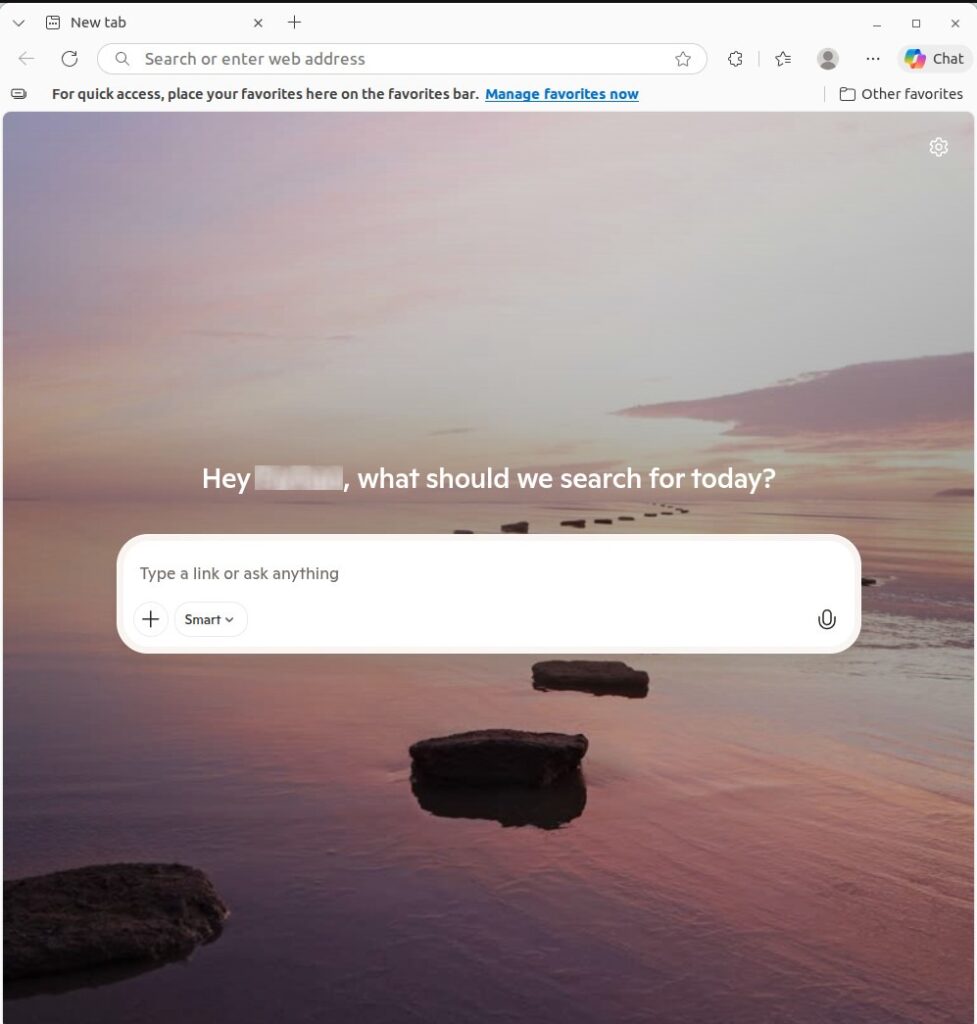
Once activated, Copilot mode presents a simplified new tab layout with a single input box that combines chat, search, and navigation. You can ask questions, give instructions, or explore topics from one place. Copilot also considers the context of your open tabs, allowing it to assist with comparisons, decisions, and multi-step tasks.
You can access Copilot through the sidebar or by clicking the Copilot icon. Features like voice interaction, file analysis, and real-time suggestions become available immediately. If you choose to grant permission, Copilot can analyze all your open tabs for better support across multi-tab sessions.
Edge Copilot Pros and Cons
Microsoft Edge Copilot offers a set of tools for web users, especially those looking to boost productivity during day-to-day browsing. But like any AI assistant, it has strengths and weaknesses, particularly when evaluated for personal use versus business applications. Here’s a breakdown of what it does well and where it falls short.
Pros:
- Integrated experience: Copilot is built directly into the Edge browser, so there’s no need to install anything extra. It’s easy to access from the sidebar, new tab page, or with voice commands.
- Context-aware assistance: Copilot can respond to the content of the page you’re viewing, offering relevant summaries, suggestions, or search help based on real-time context.
- Flexible search and chat: It replaces the traditional search experience with conversational answers, often pulling information from multiple sources and citing them clearly.
- Content generation: From drafting emails to generating images with the latest OpenAI image models, Copilot can help create text and visuals quickly using natural prompts.
- Multi-tab analysis and voice interaction: Copilot mode allows it to compare content across multiple open tabs or respond to voice commands for hands-free browsing and actions.
- Cross-platform availability: Available on both desktop and mobile versions of Edge, making it accessible across different devices without additional setup.
Cons
- Inconsistent performance: Some of the more advanced features, like web actions or multi-tab comparisons, can behave unpredictably.
- Not business-ready: Copilot can’t be customized for specific companies. It doesn’t support training on private data, enforcing brand voice, or integrating with business systems like CRMs.
- Limited control and customization: Unlike purpose-built business AI platforms, you can’t define Copilot’s personality, build workflows, or control which knowledge sources it uses.
- Risk of inaccurate responses: Because it relies on public web content, answers may be off-topic or incorrect, especially for niche or brand-specific topics.
- No simulation or testing tools: There’s no built-in way to test how Copilot will behave across a wide range of inputs before using it in a professional setting.
Edge Copilot Security Issues and Concerns
Microsoft Edge Copilot introduces productivity features, but also brings significant security challenges, particularly around data access, classification, and cloud infrastructure vulnerabilities.
1. Overly Broad Permissions
Edge Copilot inherits the data access rights of the user, meaning it can see everything the user can. In many organizations, user permissions are overly permissive, giving Copilot unintended access to sensitive data like intellectual property, financial records, and personal information. This raises the risk of AI-generated content inadvertently including or exposing confidential information.
Because Copilot operates on top of Microsoft 365, it aggregates data from services like SharePoint, OneDrive, and Outlook. If permissions aren’t properly configured or regularly audited, Copilot may surface data that was never intended to be widely shared. This risk is amplified when Copilot is used across multiple departments with varied access needs.
2. Loss of Security Labels and Data Classification
Another concern is that Copilot-generated content doesn’t retain the classification labels of the source files. For example, if Copilot pulls from a document marked confidential, the generated output won’t automatically carry that label. This disconnect can lead to downstream sharing of sensitive information without the safeguards typically applied to the original content.
Security teams must implement post-output review processes to classify AI-generated documents correctly, which adds operational complexity and room for human error.
3. Unintended Data Exposure
Copilot’s ease of content generation can also lead to accidental sharing. Reports, proposals, or summaries created by Copilot may include sensitive data and then be shared too widely, either internally or with third parties, due to weak access controls or user oversight. As a result, organizations face a higher risk of data leaks and compliance violations.
4. Cloud Vulnerabilities in Copilot Studio
Edge Copilot’s extended ecosystem, including Copilot Studio, has faced specific security threats. A recent vulnerability (CVE-2024-38206) involved server-side request forgery (SSRF), which allowed attackers to access internal cloud services like Microsoft’s metadata endpoints and databases. While Microsoft patched the issue quickly, the exploit highlighted how cloud misconfigurations in Copilot tools could expose sensitive internal infrastructure and tenant data.
AI Browser Security with Seraphic
Seraphic turns every traditional and AI browser your employees use into a secure enterprise browser, without forcing them to switch tools or change workflows. Seraphic runs inside the browser and protects the JavaScript engine, enforcing AI and data policies in real time across SaaS apps, copilots, and AI-native browsers on any device.
Seraphic gives security teams full visibility into AI activity, including prompts, uploads, downloads, and agent behavior, so you can see exactly how corporate data interacts with tools like ChatGPT, Edge Copilot, Atlas, Comet, and other AI browsers.
With inline DLP and context-aware policies, Seraphic can warn, mask, or block sensitive data before it leaves the browser, preventing leaks, prompt injection abuse, and shadow AI misuse while keeping the user experience fast and native.
Deployment is lightweight, requires no infrastructure changes, and extends the same protection model to Electron apps like ChatGPT Desktop, giving you one control point for AI and browser security everywhere work happens.
About the Author