

What Is ChatGPT Atlas Browser?
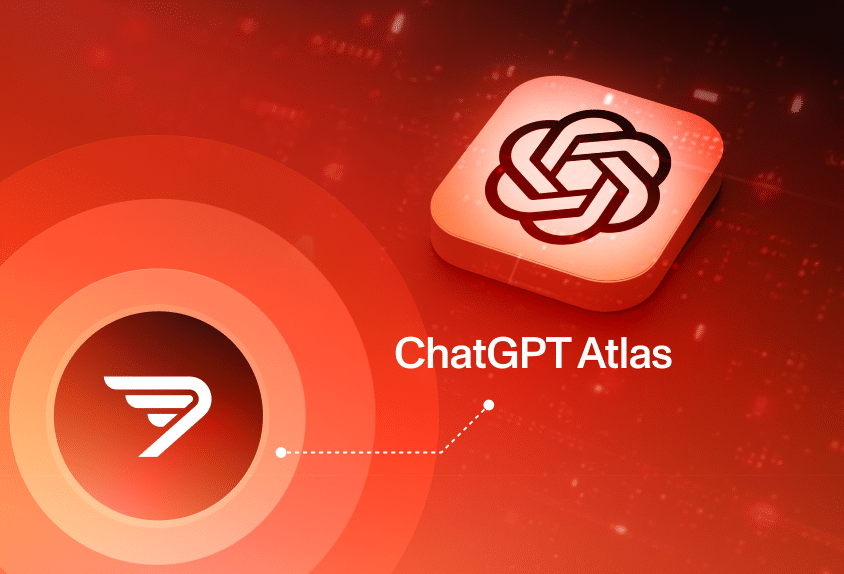
ChatGPT Atlas is a web browser with ChatGPT integrated directly into its core interface. Unlike traditional browsers, Atlas allows users to interact with ChatGPT in real time alongside their regular web browsing, without needing to switch tabs, copy-paste information, or open separate tools.
The browser acts as an assistant that understands what the user is doing online and offers help within that context. This includes answering questions about what’s on the page, summarizing content, retrieving past browsing activity, and automating tasks like filling out forms or booking appointments. With built-in memory and support for ChatGPT agent mode, Atlas can retain context across sessions and complete multi-step tasks on the user’s behalf.
Atlas is currently available on macOS for ChatGPT Free, Plus, Pro, and Go packages. Support for Windows, iOS, and Android is planned for future releases.
You can download ChatGPT Atlas free from the official product page.
This is part of a series of articles about AI browser
In this article:
- Core Capabilities of ChatGPT Atlas Browser
- How Useful Is Atlas Browser? Pros and Cons
- Is ChatGPT Atlas Secure?
- Under the Hood: How ChatGPT Atlas Browser Works
- Getting Started with ChatGPT Atlas
- Understanding Atlas Browser Data Controls and Privacy
Core Capabilities of ChatGPT Atlas Browser
ChatGPT Atlas offers several key capabilities beyond typical browser functions:
- In-browser assistance: ChatGPT can interpret and respond to questions about the current webpage, removing the need to switch contexts. It can help analyze articles, summarize content, or explain complex information directly in the browsing window.
- Agent mode: In preview for select users, this feature allows ChatGPT to perform actions within the browser, like opening tabs, navigating sites, filling out forms, and placing online orders. Agent mode uses real-time browsing context and includes safety checks to prevent misuse.
- Browser memory: When enabled, this allows ChatGPT to remember what users have explored and refer back to it in future conversations. For example, it can recall job listings viewed last week or continue assisting with ongoing projects. Users have full control to view, archive, or delete this memory.
- Contextual suggestions: Based on recent browsing and previous chats, Atlas can suggest next steps, related content, or help automate common tasks. Suggestions appear on the home screen and evolve as ChatGPT learns more about the user’s habits.
- Safety features: Agent mode includes built-in safeguards, such as restrictions on executing code, downloading files, or accessing other apps, to reduce risk. Sensitive sites are handled with caution, and actions are paused to require user oversight. However, security researchers have already found exploits that allow attackers to override some of these controls.
- Privacy and control: Users can manage what ChatGPT sees and remembers. Incognito mode, visibility toggles for individual pages, and data control settings ensure that users stay in charge of their information. According to OpenAI, browsing content is not used for training unless the user explicitly opts in. However, OpenAI still raises privacy concerns beyond those of traditional browsers.
How Useful Is Atlas Browser? Pros and Cons
Pros
Usability and workflows
ChatGPT Atlas feels integrated with macOS, offering a native experience that’s fast to set up and intuitive to use. Signing in with an existing ChatGPT account or API key brings instant access to models, and users can quickly switch between them or pin favorites for different workflows. Features like a global shortcut and drag-and-drop file support enhance daily productivity, especially when working across apps like email or Slack. Conversations are easy to organize with renaming, grouping, and search tools that support long-term work.
One standout aspect is how Atlas simplifies workflows. Instead of juggling multiple browser tabs, users can work within a single window using split views and smart panels. This makes it easy to reference documents, run prompts, or interact with the assistant side-by-side without losing focus. Quick actions, like summarizing emails or drafting replies, make it a useful companion throughout the day.
Productivity benefits
Agents are one of Atlas’s most useful features. These assistants follow repeatable instructions to perform tasks like research, client communications, or data analysis. For example, a research agent can scan multiple sources and return structured summaries, while an email agent can draft replies in a consistent tone. The benefit isn’t just time savings, but also consistent output and reduced repetition.
Atlas also uses memory to personalize interactions. Users can store information like writing style, company details, and language preferences. This context is automatically applied in new chats, improving response quality and reducing the need to re-explain instructions. Memory is user-controlled, with options to clear or restrict what gets saved.
Cons
Limited practical usefulness
Despite its integration with ChatGPT, Atlas often fails to deliver a clear advantage over just using the chatbot in a separate tab. Built-in responses can be inconsistent or contextually off. For instance, summarization attempts sometimes reference outdated page content, making the assistant less reliable than expected.
Underwhelming agent performance
Agent mode appears promising but struggles with real-world use. When asked to assist with shopping, it selected irrelevant or previously purchased items, failed to apply meaningful filters, and took several minutes to complete a basic task. While it didn’t complete purchases without approval, its decision-making lacked accuracy and speed.
Overly verbose and impractical suggestions
Attempts to auto-generate content based on browsing history can produce bloated and unusable output. For example, using ChatGPT to draft a social media post based on browsing activity resulted in a long, cluttered message with irrelevant details. These suggestions don’t save time, they often require more editing than starting from scratch.
Performance lag
Some actions, particularly those involving agent tasks, are slow. Multi-step tasks like shopping cart creation or document scanning can take several minutes, interrupting the flow of work. This undermines the assistant’s value in fast-paced workflows.
Is ChatGPT Atlas Secure?
Atlas introduces two systems that significantly expand what the browser can observe: browser memory and agent mode. Browser memory records visited sites and interaction patterns to shape future responses, while agent mode lets the AI perform actions such as opening pages or completing forms.
These features can be turned off, but they rely on user intervention, and research shows most people keep default settings. Because Atlas processes browsing activity to personalize outputs, it builds a detailed picture of what users read, how long they stay on a page, and what they do next, even if the underlying data is later deleted.
Security researchers have also highlighted how integrating AI directly into a browser increases the attack surface. Previous AI browsers have been vulnerable to prompt injection through malicious URLs, allowing attackers to trigger unintended actions like downloading harmful files or accessing personal accounts.
Since Atlas embeds similar automation capabilities, the same class of vulnerabilities applies. Combined with its broad visibility into web traffic and device files, Atlas represents a system where convenience and automation come with structural privacy and security risks that are not yet resolved.
Related content: Read our guide to browser security
Under the Hood: How ChatGPT Atlas Browser Works
The Atlas Browser uses a novel architecture that decouples the browser interface from the Chromium engine, using a custom integration layer called OWL (OpenAI’s web layer).
OWL separates Chromium’s browser process from the main Atlas application, treating Chromium as an isolated background service. This enables Atlas to launch quickly, remain stable even if Chromium crashes, and support a modern UI built with SwiftUI and AppKit. By avoiding a full Chromium UI stack, the team kept their codebase focused, reduced integration complexity, and improved the pace of iteration.
Communication between Atlas and Chromium happens through Mojo, Chromium’s inter-process messaging system. The Atlas client uses custom Swift bindings to interact with Chromium components like sessions, profiles, and web views. Rendering is handled by embedding Chromium’s GPU-backed layers into Atlas’s native views, ensuring smooth visual performance and efficient compositing. Input events are translated directly by the Atlas client and forwarded to Chromium, maintaining fidelity while respecting sandbox boundaries.
To support Agent mode, some web UI elements, the browser needs to handle cases where dropdowns or popups render outside standard tab boundaries. To ensure ChatGPT sees a complete page image, Atlas composites these elements into a unified frame. Agent-generated events bypass privileged layers and are sent directly to the renderer to maintain security. For privacy, agent sessions run in isolated, temporary contexts using Chromium’s StoragePartition, ensuring no persistent data is retained.
Getting Started with ChatGPT Atlas
Setting up ChatGPT Atlas is straightforward, especially for users already on a Mac with Apple silicon. The browser requires macOS 14.2 Monterey or later and supports key setup features like bookmark import, default browser configuration, and permission controls.
- Installing Atlas
To install, download the Atlas .dmg file from the official site. Open the disk image, drag the Atlas app into the Applications folder, and then eject the installer. You can launch Atlas from Applications or Spotlight. During onboarding, it’s automatically added to the Dock. To keep it there permanently, right-click the Dock icon, go to Options, and select Keep in Dock. - Set as default browser
Making Atlas your default browser unlocks enhanced usage limits for the first week. To do this, open Atlas, go to Settings > General, and click Set default. In the confirmation window, choose “Use Atlas.” You can also confirm this change in macOS settings under Desktop & Dock > Default web browser. - Import data from Chrome
Atlas supports importing bookmarks, saved passwords, and browsing history from Chrome. To begin, select ChatGPT Atlas in the menu bar, then choose Import data from another browser. Click Start import and allow access to Keychain to transfer saved passwords. After authentication, select Done to finish the process. This step does not interfere with your Chrome setup. - Updates and maintenance
Atlas automatically checks for updates. To check manually, open the app and select Check for updates. If an update is available, follow the prompts to install and relaunch.
Understanding Atlas Browser Data Controls and Privacy
Include Web Browsing and Shared Links
Users can choose whether their browsing activity in Atlas contributes to training OpenAI’s models. This setting is off by default and only becomes available when “Improve the model for everyone” is turned on.
Even if enabled, sites that block GPTBot are excluded. The toggle is separate from the general ChatGPT training setting, meaning users must configure it independently. Shared links, which allow others to view specific chat content, can be reviewed and revoked from the Data controls menu.
Archiving and Deleting Chats
Atlas offers chat archiving to keep the main chat list clean while preserving past conversations. Users can move all chats to the archive in one step, or delete them permanently. Deleted chats cannot be recovered, and this process does not affect browser memories or cookies. Users who want to keep a copy should export their data before deletion.
Deleting Browsing History
Users can clear browsing history through the Settings menu under Web Browsing. The deletion process allows for different time ranges and data types, including chats, cached files, and site data.
Deleting web history also removes associated browser memories. While deleted sites are removed from auto-suggestions, full refresh of changes may take time. Advanced options are available to delete passwords, autofill data, and download history.
Browsing with Incognito
Opening an incognito window prevents Atlas from saving browsing history, cookies, or form inputs after the session ends. While users are signed out of ChatGPT in this mode, chats are still stored separately for 30 days to detect abuse.
Incognito does not anonymize users to third parties. Employers, schools, or ISPs may still view activity. Additionally, some site activity may still be visible to OpenAI if third-party services are used.
Browser Memories
When enabled, browser memories summarize web content to improve ChatGPT responses. Summaries are filtered to exclude sensitive or personal data and are deleted within 7 days. Users can view, delete, or archive these memories through personalization settings.
There’s also an option for on-device summarization (macOS 26+), preventing content from being sent to OpenAI’s servers. These memories help personalize replies but remain under user control.
Page Visibility and Agent Logged In/Out
Users can restrict ChatGPT’s access to specific pages by adjusting page visibility settings from the address bar. Hidden pages are excluded from browser memories and won’t influence assistant responses.
For agent features, logged-in and logged-out modes offer separate controls, allowing users to manage what the agent can access or do depending on session state.
Securing AI Browsers with Seraphic
As organizations embrace ChatGPT Atlas to accelerate research, coding, and decision-making, Seraphic provides the enforcement layer needed to keep those AI-driven workflows safe.
Seraphic operates directly at the browser layer, giving enterprises deterministic control over how Atlas interacts with corporate data without requiring plugins, special configurations, or changes to the application itself. Its lightweight architecture applies fine-grained, context-aware policies that regulate what users can input, what Atlas can access, and how generated content flows across the environment. Real-time inspection ensures sensitive data isn’t exposed, copied, or exfiltrated through AI-assisted interactions, while Seraphic’s consistent, cross-browser enforcement maintains compliance across every endpoint.
By pairing Atlas’s advanced AI capabilities with Seraphic’s enterprise-grade protection, organizations unlock powerful productivity gains without compromising governance or security. With Seraphic, teams can confidently operationalize ChatGPT Atlas at scale, empowering users while keeping data, workflows, and AI interactions fully protected.
About the Author